
The Problem: Security Cameras Are Expensive and Complicated
Walk into any electronics store. A basic security camera? 2000-5000 Taka. A decent one with remote viewing? 10,000+. And they all want your data in their cloud.
But here’s what bothered me more: why do I need a computer to see what my camera sees?
Most ESP32 CAM tutorials show you how to stream to a browser. Cool, but then you’re stuck with your laptop open, refreshing the page, hoping it works.
I wanted something different.
Something truly portable. A camera that streams directly to a handheld screen. No PC. No router. No cloud. Just two ESP32s talking to each other.
And I wanted to build it myself.
So here it is: a standalone CCTV system where the ESP32 CAM streams video to a 2.8-inch TFT display – no computer needed, no internet required, just pure DIY goodness.
The Project Concept: Two ESP32s, One Connection
Here’s the simple idea:
| Component | Role | What It Does |
|---|---|---|
| ESP32 CAM | Client | Captures video, sends it wirelessly |
| ESP32 + TFT Display | Server | Receives video, shows it on screen |
| WiFi Access Point | Bridge | Direct connection – no router needed! |
The camera captures JPG images, sends them over WebSocket, and the display decodes and shows them. Latency is surprisingly low.
Why Build This Instead of Buying?
| Reason | Why It Matters |
|---|---|
| No PC needed | Truly portable – take it anywhere |
| No internet required | Works in remote locations |
| No cloud subscription | Your footage stays yours |
| Learn something | Understand how video streaming works |
| Customizable | Add battery, case, night vision – your call |
| Cheaper | ~2000-2500 Taka total |
For a student budget? This is a no-brainer.
What You’ll Need (Complete Parts List)
Camera Side (Client)
| Component | Specs | Notes |
|---|---|---|
| ESP32 CAM Module | AI-Thinker | The main board |
| OV2640 Camera | 2MP | Comes with most ESP32 CAM modules |
| ESP32 CAM-MB Programmer | Micro USB | For programming and power |
| Micro USB Cable | Data-capable | For uploads |

Display Side (Server)
| Component | Specs | Notes |
|---|---|---|
| ESP32 Development Board | Type-C version | Any ESP32 works |
| 2.8″ TFT LCD Display | ST7789 driver | 240×320 resolution |
| Breadboard | 400 points or larger | For connections |
| Jumper Wires | Male-to-female | At least 20 |
| USB-C Cable | Data-capable | For programming and power |

Optional Upgrades
| Item | Why You Might Want It |
|---|---|
| LiPo Battery + TP4056 | Make it truly portable |
| 3D Printed Case | Protect the components |
| IR LEDs | Night vision capability |
Quick Buy Links (Affiliate)
| Component | Where to Find |
|---|---|
| ESP32-CAM + OV2640 | AliExpress |
| ESP32 Development Board | AliExpress |
| 2.8″ TFT Display ST7789 | AliExpress |
| Breadboard + Jumpers Kit | AliExpress |
Display Side (Server)
| Component | Specs | Notes |
|---|---|---|
| ESP32 Development Board | Type-C version | Any ESP32 works |
| 2.8″ TFT LCD Display | ST7789 driver | 240×320 resolution |
| Breadboard | 400 points or larger | For connections |
| Jumper Wires | Male-to-female | At least 20 |
| USB-C Cable | Data-capable | For programming and power |
Optional Upgrades
| Item | Why You Might Want It |
|---|---|
| LiPo Battery + TP4056 | Make it truly portable |
| 3D Printed Case | Protect the components |
| IR LEDs | Night vision capability |
Hardware Assembly: Camera Side (Client)
This part is dead simple.
Step 1: Take the OV2640 camera module. Carefully insert the ribbon cable into the ESP32-CAM slot. The contacts should face down (toward the PCB).
Step 2: Gently press the camera down until it clicks into place. The connector should close fully.
Step 3: Attach the ESP32-CAM to the ESP32-CAM-MB programmer. The pins should align perfectly.
Step 4: Connect the Micro USB cable to the programmer. That’s it for the camera side.
Pro tip: The ESP32-CAM programmer has a small switch. Leave it in the middle position for normal operation.
Hardware Assembly: Display Side (Server)
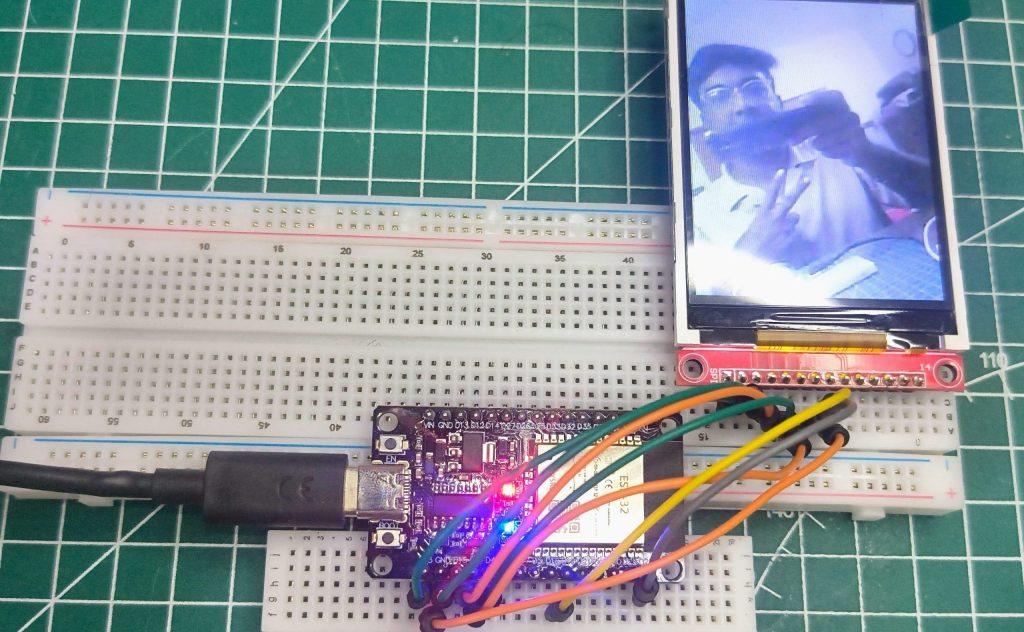
This is where things get interesting. You’ll be connecting the TFT display to the ESP32 using jumper wires.
Pin Connections (Critical – Get This Right!)
| TFT Display Pin | Connect To (ESP32) | Notes |
|---|---|---|
| VCC | 3.3V | Power for display |
| GND | GND | Common ground |
| SCL | GPIO18 | SPI Clock |
| SDA | GPIO23 | SPI Data (MOSI) |
| RES | GPIO26 | Reset |
| DC | GPIO25 | Data/Command |
| CS | GPIO33 | Chip Select |
| BL (Backlight) | 3.3V | Or use PWM for brightness control |

Step-by-step:
Step 1: Place the ESP32 and TFT display on a breadboard (or two breadboards for more space).
Step 2: Start with power and ground. Connect VCC → 3.3V and GND → GND.
Step 3: Connect the SPI pins (SCL, SDA, RES, DC, CS) according to the table above.
Step 4: Connect the backlight (BL) to 3.3V for full brightness.
Step 5: Double-check every connection. One wrong pin and the display won’t work.

Software Setup: Arduino IDE Configuration
Before writing any code, we need to install the right libraries.
Required Libraries
| Library | Where to Find | Purpose |
|---|---|---|
| TFT_eSPI | Library Manager | Drives the TFT display |
| Arduino WebSockets | Library Manager | Handles real-time data transfer |
| TJPG_Decoder | Library Manager | Decodes JPG images |
| WiFi | Built-in | Networking |
| ESP32 CAM Libraries | Board Manager | For camera side |
Install ESP32 Board Support
Open Arduino IDE
File → Preferences
Add this URL to Additional Board Manager URLs:
texthttps://raw.githubusercontent.com/espressif/arduino-esp32/gh-pages/package_esp32_index.json
Tools → Board → Boards Manager
Search “ESP32” and install
Install Libraries
Tools → Manage Libraries
Search and install:
TFT_eSPI by Bodmer
Arduino WebSockets by Markus Sattler
TJPG_Decoder by Bodmer
Critical Step: Configuring TFT_eSPI
The TFT_eSPI library needs to know what display you’re using. This is where most beginners get stuck.
Step 1: Find the TFT_eSPI library folder on your computer:
Windows:
Documents/Arduino/libraries/TFT_eSPIMac:
~/Documents/Arduino/libraries/TFT_eSPILinux:
~/Arduino/libraries/TFT_eSPI
Step 2: Open the User_Setup.h file (or rename User_Setup_Select.h to point to it).
Step 3: Comment out the generic setup line. Find:
// #include <User_Setup.h>Uncomment it (remove the //).
Step 4: Configure your display. Find the ST7789 section and uncomment:
#define ST7789_DRIVER // Configure all registersStep 5: Set the correct dimensions:
#define TFT_WIDTH  240
#define TFT_HEIGHT 320
Step 6: Define your pin connections (match what you wired):
#define TFT_CS   33
#define TFT_DC   25
#define TFT_RST  26

#define TFT_MOSI 23
#define TFT_SCLK 18
Step 7: Save the file.
Step 8: Test the display. Upload the “GraphicTest” example from TFT_eSPI. If you see colorful shapes, you’re good to go!
Server-Side Code (The Display)
This code makes the ESP32 act as a WiFi Access Point and WebSocket server.
Complete Server Code
#include <SPI.h>                    // Serial Peripheral Interface library for TFT communication
#include <ArduinoWebsockets.h>      // WebSocket library for network communication
#include <WiFi.h>                   // WiFi library for network connectivity
#include <TFT_eSPI.h>               // TFT display library
#include <TJpg_Decoder.h>           // JPEG decoder library for image rendering

#define TFT_MOSI 23  // Master Out Slave In (data line from ESP32 to TFT)
#define TFT_SCLK 18  // Serial Clock (clock signal)
#define TFT_CS   15  // Chip Select (activates TFT)
#define TFT_DC    2  // Data/Command (selects data vs command mode)
#define TFT_RST   4  // Reset pin

const char* ssid = "ESP32-Camera-Server";  // WiFi network name
const char* password = "123456789";        // WiFi password

using namespace websockets;        // Use websockets namespace
WebsocketsServer server;           // WebSocket server object
WebsocketsClient client;           // WebSocket client object

TFT_eSPI tft = TFT_eSPI();        // TFT display object
bool clientConnected = false;      // Track client connection status

bool tft_output(int16_t x, int16_t y, uint16_t w, uint16_t h, uint16_t* bitmap)
{
  // Stop decoding if image runs off bottom of screen
  if (y >= tft.height()) return 0;

  // Render the image block to TFT (automatically handles clipping)
  tft.pushImage(x, y, w, h, bitmap);

  // Return 1 to continue decoding next block
  return 1;
}

void setup() {
  Serial.begin(115200);      // Start serial communication at 115200 baud
  delay(1000);               // Wait 1 second for stabilization

  // TFT Display Initialization
  tft.begin();               // Initialize TFT display
  tft.setRotation(3);        // Set display orientation (0-3)
  tft.setTextColor(TFT_WHITE, TFT_BLACK);  // White text on black background
  tft.fillScreen(TFT_RED);   // Fill screen with red color
  tft.setSwapBytes(true);    // Swap color bytes for correct endianness

  // JPEG Decoder Configuration
  TJpgDec.setJpgScale(1);    // Set JPEG scaling factor (1 = no scaling)
  TJpgDec.setCallback(tft_output);  // Set rendering callback function

  // Access Point Setup
  Serial.println();
  Serial.println("Setting up Access Point...");

  // Display setup message on TFT
  tft.setTextSize(2);
  tft.setCursor(10, 10);
  tft.println("Setting AP...");

  // Start WiFi Access Point
  WiFi.softAP(ssid, password);

  // Get and display IP address
  IPAddress IP = WiFi.softAPIP();
  Serial.print("AP IP address: ");
  Serial.println(IP);

  tft.setCursor(10, 40);
  tft.print("IP: ");
  tft.println(IP);

  // WebSocket Server Setup
  server.listen(8888);       // Start listening on port 8888
  Serial.println("WebSocket server started on port 8888");

  // Display connection information
  tft.setCursor(10, 70);
  tft.println("Port: 8888");
  tft.setCursor(10, 100);
  tft.println("Waiting for");
  tft.setCursor(10, 120);
  tft.println("client...");
}

void loop() {
  // Check for new client connections
  if (server.poll()) {
    client = server.accept();    // Accept incoming client connection
    clientConnected = true;      // Set connection flag
    Serial.println("Client connected!");

    // Update display to show connected status
    tft.fillScreen(TFT_GREEN);
    tft.setTextSize(2);
    tft.setCursor(10, 10);
    tft.println("CLIENT");
    tft.setCursor(10, 40);
    tft.println("CONNECTED!");
  }

  // Handle messages from connected client
  if (client.available() && clientConnected) {
    client.poll();  // Process WebSocket events

    if (client.available()) {
      WebsocketsMessage msg = client.readBlocking();  // Read incoming message

      // Basic validation - check if data looks like JPEG (minimum size)
      if (msg.length() > 100) {
        uint32_t t = millis();  // Start timing for performance measurement

        // Extract JPEG dimensions from the image data
        uint16_t w = 0, h = 0;
        TJpgDec.getJpgSize(&w, &h, (const uint8_t*)msg.c_str(), msg.length());
        Serial.print("Width = "); Serial.print(w); Serial.print(", height = "); Serial.println(h);

        // Only render if we have valid dimensions
        if (w > 0 && h > 0) {
          // Decode and display JPEG image at top-left corner (0,0)
          TJpgDec.drawJpg(0, 0, (const uint8_t*)msg.c_str(), msg.length());

          // Calculate and display rendering time
          t = millis() - t;
          Serial.print(t); Serial.println(" ms");

        } else {
          Serial.println("Invalid JPEG dimensions");
        }
      } else {
        Serial.println("Received data too small to be JPEG");
      }
    }
  } else if (!client.available() && clientConnected) {
    // Handle client disconnection
    clientConnected = false;
    Serial.println("Client disconnected!");

    // Update display to show disconnected status
    tft.fillScreen(TFT_RED);
    tft.setTextSize(2);
    tft.setCursor(10, 10);
    tft.println("CLIENT");
    tft.setCursor(10, 40);
    tft.println("DISCONNECTED!");
    delay(2000);  // Show message for 2 seconds

    // Return to waiting state
    tft.fillScreen(TFT_BLACK);
    tft.setCursor(10, 10);
    tft.println("Waiting for");
    tft.setCursor(10, 40);
    tft.println("client...");
  }

  delay(10);  // Small delay to prevent overwhelming the processor
}
Client-Side Code (The Camera)
This code runs on the ESP32 CAM. It captures images and sends them to the server.
Complete Camera Code
#include "esp_camera.h"           // ESP32 camera driver library
#include <WiFi.h>                 // WiFi library for network connectivity
#include <ArduinoWebsockets.h>    // WebSocket library for network communication

// ===========================
// Select camera model in board_config.h
// ===========================
#include "board_config.h"         // Contains camera pin definitions for specific board

// ===========================
// Enter your WiFi credentials
// ===========================
const char* ssid = "ESP32-Camera-Server";    // WiFi network name to connect to
const char* password = "123456789";          // WiFi password

const char* websockets_server_host = "192.168.4.1";  // Server IP address (AP mode IP)
const uint16_t websockets_server_port = 8888;        // WebSocket server port number

using namespace websockets;       // Use websockets namespace
WebsocketsClient client;          // WebSocket client object for connecting to server

void setup() {
  Serial.begin(115200);           // Start serial communication at 115200 baud
  Serial.setDebugOutput(true);    // Enable ESP32 debug output to serial
  Serial.println();               // Print empty line

  // Camera configuration structure
  camera_config_t config;
  config.ledc_channel = LEDC_CHANNEL_0;    // LED control channel for XCLK
  config.ledc_timer = LEDC_TIMER_0;        // LED control timer
  // Camera data pins (D0-D7)
  config.pin_d0 = Y2_GPIO_NUM;
  config.pin_d1 = Y3_GPIO_NUM;
  config.pin_d2 = Y4_GPIO_NUM;
  config.pin_d3 = Y5_GPIO_NUM;
  config.pin_d4 = Y6_GPIO_NUM;
  config.pin_d5 = Y7_GPIO_NUM;
  config.pin_d6 = Y8_GPIO_NUM;
  config.pin_d7 = Y9_GPIO_NUM;
  // Camera control pins
  config.pin_xclk = XCLK_GPIO_NUM;         // System clock
  config.pin_pclk = PCLK_GPIO_NUM;         // Pixel clock
  config.pin_vsync = VSYNC_GPIO_NUM;       // Vertical sync
  config.pin_href = HREF_GPIO_NUM;         // Horizontal reference
  config.pin_sccb_sda = SIOD_GPIO_NUM;     // I2C data (camera control)
  config.pin_sccb_scl = SIOC_GPIO_NUM;     // I2C clock (camera control)
  config.pin_pwdn = PWDN_GPIO_NUM;         // Power down pin
  config.pin_reset = RESET_GPIO_NUM;       // Reset pin

  // Camera performance settings
  config.xclk_freq_hz = 10000000;          // 10MHz XCLK frequency
  config.frame_size = FRAMESIZE_QVGA;      // 320x240 resolution
  config.pixel_format = PIXFORMAT_JPEG;    // JPEG format for streaming
  config.grab_mode = CAMERA_GRAB_WHEN_EMPTY; // Grab frame when buffer empty
  config.fb_location = CAMERA_FB_IN_PSRAM; // Use PSRAM for frame buffer
  config.jpeg_quality = 12;                // JPEG quality (0-63, lower=better)
  config.fb_count = 1;                     // Number of frame buffers

  // Optimize settings if PSRAM is available
  if (config.pixel_format == PIXFORMAT_JPEG) {
    if (psramFound()) {                    // Check if PSRAM is available
      config.jpeg_quality = 10;            // Better quality with PSRAM
      config.fb_count = 2;                 // Use double buffering
      config.grab_mode = CAMERA_GRAB_LATEST; // Always get latest frame
    } else {
      // Limited settings without PSRAM
      config.frame_size = FRAMESIZE_QVGA;  // Keep smaller resolution
      config.fb_location = CAMERA_FB_IN_DRAM; // Use DRAM instead
    }
  } else {
    config.frame_size = FRAMESIZE_240X240; // Non-JPEG format resolution
#if CONFIG_IDF_TARGET_ESP32S3
    config.fb_count = 2;                   // ESP32-S3 specific optimization
#endif
  }

  // Initialize camera with configuration
  esp_err_t err = esp_camera_init(&config);
  if (err != ESP_OK) {                     // Check if initialization succeeded
    Serial.printf("Camera init failed with error 0x%x", err);
    return;                                // Stop if camera failed
  }

  // Connect to WiFi
  WiFi.begin(ssid, password);              // Start WiFi connection
  WiFi.setSleep(false);                    // Disable WiFi sleep for better performance

  Serial.print("WiFi connecting");
  while (WiFi.status() != WL_CONNECTED) {  // Wait for connection
    delay(500);
    Serial.print(".");
  }
  Serial.println("");
  Serial.println("WiFi connected");

  // Display connection info
  Serial.print("Camera Ready! Use 'http://");
  Serial.print(WiFi.localIP());            // Print local IP address
  Serial.println("' to connect");

  // Connect to WebSocket server with timeout
  Serial.println("Connecting to WebSocket server...");
  unsigned long startAttemptTime = millis();         // Record start time
  const unsigned long timeout = 10000;               // 10 second timeout

  // Attempt connection with timeout
  while(!client.connect(websockets_server_host, websockets_server_port, "/")) {
    if (millis() - startAttemptTime > timeout) {     // Check if timeout reached
      Serial.println("WebSocket connection failed - timeout");
      break;
    }
    delay(500);
    Serial.print(".");
  }

  // Check connection status
  if (client.available()) {
    Serial.println("WebSocket Connected!");
  } else {
    Serial.println("WebSocket connection failed!");
  }
}


void loop() {
  // Capture frame from camera
  camera_fb_t *fb = NULL;                  // Frame buffer pointer
  esp_err_t res = ESP_OK;                  // Error code variable
  fb = esp_camera_fb_get();                // Get frame buffer from camera

  // Check if frame capture was successful
  if(!fb) {
    Serial.println("Camera capture failed");
    esp_camera_fb_return(fb);              // Return frame buffer
    return;                                 // Skip this iteration
  }

  size_t fb_len = 0;                       // Frame buffer length

  // Verify frame format is JPEG
  if(fb->format != PIXFORMAT_JPEG) {
    Serial.println("Non-JPEG data not implemented");
    return;                                 // Skip if not JPEG
  }

  // Send JPEG image via WebSocket as binary data
  client.sendBinary((const char*) fb->buf, fb->len);

  // Return frame buffer to camera for reuse
  esp_camera_fb_return(fb);
}// USER DEFINED SETTINGS
// Set driver type, fonts to be loaded, pins used and SPI control method etc.
//
// See the User_Setup_Select.h file if you wish to be able to define multiple
// setups and then easily select which setup file is used by the compiler.
//
// If this file is edited correctly then all the library example sketches should
// run without the need to make any more changes for a particular hardware setup!
// Note that some sketches are designed for a particular TFT pixel width/height
// User defined information reported by "Read_User_Setup" test & diagnostics example
#define USER_SETUP_INFO "User_Setup"
// Define to disable all #warnings in library (can be put in User_Setup_Select.h)
//#define DISABLE_ALL_LIBRARY_WARNINGS
// ##################################################################################
//
// Section 1. Call up the right driver file and any options for it
//
// ##################################################################################
// Define STM32 to invoke optimised processor support (only for STM32)
//#define STM32
// Defining the STM32 board allows the library to optimise the performance
// for UNO compatible "MCUfriend" style shields
//#define NUCLEO_64_TFT
//#define NUCLEO_144_TFT
// STM32 8-bit parallel only:
// If STN32 Port A or B pins 0-7 are used for 8-bit parallel data bus bits 0-7
// then this will improve rendering performance by a factor of ~8x
//#define STM_PORTA_DATA_BUS
//#define STM_PORTB_DATA_BUS
// Tell the library to use parallel mode (otherwise SPI is assumed)
//#define TFT_PARALLEL_8_BIT
//#defined TFT_PARALLEL_16_BIT // **** 16-bit parallel ONLY for RP2040 processor ****
// Display type - only define if RPi display
//#define RPI_DISPLAY_TYPE // 20MHz maximum SPI
// Only define one driver, the other ones must be commented out
// #define ILI9341_DRIVER // Generic driver for common displays
//#define ILI9341_2_DRIVER // Alternative ILI9341 driver, see https://github.com/Bodmer/TFT_eSPI/issues/1172
//#define ST7735_DRIVER // Define additional parameters below for this display
//#define ILI9163_DRIVER // Define additional parameters below for this display
//#define S6D02A1_DRIVER
//#define RPI_ILI9486_DRIVER // 20MHz maximum SPI
//#define HX8357D_DRIVER
//#define ILI9481_DRIVER
//#define ILI9486_DRIVER
// #define ILI9488_DRIVER // WARNING: Do not connect ILI9488 display SDO to MISO if other devices share the SPI bus (TFT SDO does NOT tristate when CS is high)
#define ST7789_DRIVER // Full configuration option, define additional parameters below for this display
//#define ST7789_2_DRIVER // Minimal configuration option, define additional parameters below for this display
//#define R61581_DRIVER
//#define RM68140_DRIVER
//#define ST7796_DRIVER
//#define SSD1351_DRIVER
//#define SSD1963_480_DRIVER
//#define SSD1963_800_DRIVER
//#define SSD1963_800ALT_DRIVER
//#define ILI9225_DRIVER
//#define GC9A01_DRIVER
// Some displays support SPI reads via the MISO pin, other displays have a single
// bi-directional SDA pin and the library will try to read this via the MOSI line.
// To use the SDA line for reading data from the TFT uncomment the following line:
#define TFT_SDA_READ // This option is for ESP32 ONLY, tested with ST7789 and GC9A01 display only
// For ST7735, ST7789 and ILI9341 ONLY, define the colour order IF the blue and red are swapped on your display
// Try ONE option at a time to find the correct colour order for your display
// #define TFT_RGB_ORDER TFT_RGB // Colour order Red-Green-Blue
#define TFT_RGB_ORDER TFT_BGR // Colour order Blue-Green-Red
// For M5Stack ESP32 module with integrated ILI9341 display ONLY, remove // in line below
// #define M5STACK
// For ST7789, ST7735, ILI9163 and GC9A01 ONLY, define the pixel width and height in portrait orientation
// #define TFT_WIDTH 80
// #define TFT_WIDTH 128
// #define TFT_WIDTH 172 // ST7789 172 x 320
// #define TFT_WIDTH 170 // ST7789 170 x 320
#define TFT_WIDTH 240 // ST7789 240 x 240 and 240 x 320
// #define TFT_HEIGHT 160
// #define TFT_HEIGHT 128
// #define TFT_HEIGHT 240 // ST7789 240 x 240
#define TFT_HEIGHT 320 // ST7789 240 x 320
// #define TFT_HEIGHT 240 // GC9A01 240 x 240
// For ST7735 ONLY, define the type of display, originally this was based on the
// colour of the tab on the screen protector film but this is not always true, so try
// out the different options below if the screen does not display graphics correctly,
// e.g. colours wrong, mirror images, or stray pixels at the edges.
// Comment out ALL BUT ONE of these options for a ST7735 display driver, save this
// this User_Setup file, then rebuild and upload the sketch to the board again:
// #define ST7735_INITB
// #define ST7735_GREENTAB
// #define ST7735_GREENTAB2
// #define ST7735_GREENTAB3
// #define ST7735_GREENTAB128 // For 128 x 128 display
// #define ST7735_GREENTAB160x80 // For 160 x 80 display (BGR, inverted, 26 offset)
// #define ST7735_ROBOTLCD // For some RobotLCD Arduino shields (128x160, BGR, https://docs.arduino.cc/retired/getting-started-guides/TFT)
// #define ST7735_REDTAB
// #define ST7735_BLACKTAB
// #define ST7735_REDTAB160x80 // For 160 x 80 display with 24 pixel offset
// If colours are inverted (white shows as black) then uncomment one of the next
// 2 lines try both options, one of the options should correct the inversion.
// #define TFT_INVERSION_ON
#define TFT_INVERSION_OFF
// ##################################################################################
//
// Section 2. Define the pins that are used to interface with the display here
//
// ##################################################################################
// If a backlight control signal is available then define the TFT_BL pin in Section 2
// below. The backlight will be turned ON when tft.begin() is called, but the library
// needs to know if the LEDs are ON with the pin HIGH or LOW. If the LEDs are to be
// driven with a PWM signal or turned OFF/ON then this must be handled by the user
// sketch. e.g. with digitalWrite(TFT_BL, LOW);
// #define TFT_BL 32 // LED back-light control pin
// #define TFT_BACKLIGHT_ON HIGH // Level to turn ON back-light (HIGH or LOW)
// We must use hardware SPI, a minimum of 3 GPIO pins is needed.
// Typical setup for ESP8266 NodeMCU ESP-12 is :
//
// Display SDO/MISO to NodeMCU pin D6 (or leave disconnected if not reading TFT)
// Display LED to NodeMCU pin VIN (or 5V, see below)
// Display SCK to NodeMCU pin D5
// Display SDI/MOSI to NodeMCU pin D7
// Display DC (RS/AO)to NodeMCU pin D3
// Display RESET to NodeMCU pin D4 (or RST, see below)
// Display CS to NodeMCU pin D8 (or GND, see below)
// Display GND to NodeMCU pin GND (0V)
// Display VCC to NodeMCU 5V or 3.3V
//
// The TFT RESET pin can be connected to the NodeMCU RST pin or 3.3V to free up a control pin
//
// The DC (Data Command) pin may be labelled AO or RS (Register Select)
//
// With some displays such as the ILI9341 the TFT CS pin can be connected to GND if no more
// SPI devices (e.g. an SD Card) are connected, in this case comment out the #define TFT_CS
// line below so it is NOT defined. Other displays such at the ST7735 require the TFT CS pin
// to be toggled during setup, so in these cases the TFT_CS line must be defined and connected.
//
// The NodeMCU D0 pin can be used for RST
//
//
// Note: only some versions of the NodeMCU provide the USB 5V on the VIN pin
// If 5V is not available at a pin you can use 3.3V but backlight brightness
// will be lower.
// ###### EDIT THE PIN NUMBERS IN THE LINES FOLLOWING TO SUIT YOUR ESP8266 SETUP ######
// For NodeMCU - use pin numbers in the form PIN_Dx where Dx is the NodeMCU pin designation
#define TFT_MISO PIN_D6 // Automatically assigned with ESP8266 if not defined
#define TFT_MOSI PIN_D7 // Automatically assigned with ESP8266 if not defined
#define TFT_SCLK PIN_D5 // Automatically assigned with ESP8266 if not defined
#define TFT_CS PIN_D8 // Chip select control pin D8
#define TFT_DC PIN_D3 // Data Command control pin
#define TFT_RST PIN_D4 // Reset pin (could connect to NodeMCU RST, see next line)
//#define TFT_RST -1 // Set TFT_RST to -1 if the display RESET is connected to NodeMCU RST or 3.3V
//#define TFT_BL PIN_D1 // LED back-light (only for ST7789 with backlight control pin)
//#define TOUCH_CS PIN_D2 // Chip select pin (T_CS) of touch screen
//#define TFT_WR PIN_D2 // Write strobe for modified Raspberry Pi TFT only
// ###### FOR ESP8266 OVERLAP MODE EDIT THE PIN NUMBERS IN THE FOLLOWING LINES ######
// Overlap mode shares the ESP8266 FLASH SPI bus with the TFT so has a performance impact
// but saves pins for other functions. It is best not to connect MISO as some displays
// do not tristate that line when chip select is high!
// Note: Only one SPI device can share the FLASH SPI lines, so a SPI touch controller
// cannot be connected as well to the same SPI signals.
// On NodeMCU 1.0 SD0=MISO, SD1=MOSI, CLK=SCLK to connect to TFT in overlap mode
// On NodeMCU V3 S0 =MISO, S1 =MOSI, S2 =SCLK
// In ESP8266 overlap mode the following must be defined
//#define TFT_SPI_OVERLAP
// In ESP8266 overlap mode the TFT chip select MUST connect to pin D3
//#define TFT_CS PIN_D3
//#define TFT_DC PIN_D5 // Data Command control pin
//#define TFT_RST PIN_D4 // Reset pin (could connect to NodeMCU RST, see next line)
//#define TFT_RST -1 // Set TFT_RST to -1 if the display RESET is connected to NodeMCU RST or 3.3V
// ###### EDIT THE PIN NUMBERS IN THE LINES FOLLOWING TO SUIT YOUR ESP32 SETUP ######
// For ESP32 Dev board (only tested with ILI9341 display)
// The hardware SPI can be mapped to any pins
#define TFT_MISO 19
#define TFT_MOSI 23
#define TFT_SCLK 18
#define TFT_CS 15 // Chip select control pin
#define TFT_DC 2 // Data Command control pin
#define TFT_RST 4 // Reset pin (could connect to RST pin)
//#define TFT_RST -1 // Set TFT_RST to -1 if display RESET is connected to ESP32 board RST
// For ESP32 Dev board (only tested with GC9A01 display)
// The hardware SPI can be mapped to any pins
//#define TFT_MOSI 15 // In some display driver board, it might be written as "SDA" and so on.
//#define TFT_SCLK 14
//#define TFT_CS 5 // Chip select control pin
//#define TFT_DC 27 // Data Command control pin
//#define TFT_RST 33 // Reset pin (could connect to Arduino RESET pin)
//#define TFT_BL 22 // LED back-light
//#define TOUCH_CS 21 // Chip select pin (T_CS) of touch screen
//#define TFT_WR 22 // Write strobe for modified Raspberry Pi TFT only
// For the M5Stack module use these #define lines
//#define TFT_MISO 19
//#define TFT_MOSI 23
//#define TFT_SCLK 18
//#define TFT_CS 14 // Chip select control pin
//#define TFT_DC 27 // Data Command control pin
//#define TFT_RST 33 // Reset pin (could connect to Arduino RESET pin)
//#define TFT_BL 32 // LED back-light (required for M5Stack)
// ###### EDIT THE PINs BELOW TO SUIT YOUR ESP32 PARALLEL TFT SETUP ######
// The library supports 8-bit parallel TFTs with the ESP32, the pin
// selection below is compatible with ESP32 boards in UNO format.
// Wemos D32 boards need to be modified, see diagram in Tools folder.
// Only ILI9481 and ILI9341 based displays have been tested!
// Parallel bus is only supported for the STM32 and ESP32
// Example below is for ESP32 Parallel interface with UNO displays
// Tell the library to use 8-bit parallel mode (otherwise SPI is assumed)
//#define TFT_PARALLEL_8_BIT
// The ESP32 and TFT the pins used for testing are:
//#define TFT_CS 33 // Chip select control pin (library pulls permanently low
//#define TFT_DC 15 // Data Command control pin - must use a pin in the range 0-31
//#define TFT_RST 32 // Reset pin, toggles on startup
//#define TFT_WR 4 // Write strobe control pin - must use a pin in the range 0-31
//#define TFT_RD 2 // Read strobe control pin
//#define TFT_D0 12 // Must use pins in the range 0-31 for the data bus
//#define TFT_D1 13 // so a single register write sets/clears all bits.
//#define TFT_D2 26 // Pins can be randomly assigned, this does not affect
//#define TFT_D3 25 // TFT screen update performance.
//#define TFT_D4 17
//#define TFT_D5 16
//#define TFT_D6 27
//#define TFT_D7 14
// ###### EDIT THE PINs BELOW TO SUIT YOUR STM32 SPI TFT SETUP ######
// The TFT can be connected to SPI port 1 or 2
//#define TFT_SPI_PORT 1 // SPI port 1 maximum clock rate is 55MHz
//#define TFT_MOSI PA7
//#define TFT_MISO PA6
//#define TFT_SCLK PA5
//#define TFT_SPI_PORT 2 // SPI port 2 maximum clock rate is 27MHz
//#define TFT_MOSI PB15
//#define TFT_MISO PB14
//#define TFT_SCLK PB13
// Can use Ardiuno pin references, arbitrary allocation, TFT_eSPI controls chip select
//#define TFT_CS D5 // Chip select control pin to TFT CS
//#define TFT_DC D6 // Data Command control pin to TFT DC (may be labelled RS = Register Select)
//#define TFT_RST D7 // Reset pin to TFT RST (or RESET)
// OR alternatively, we can use STM32 port reference names PXnn
//#define TFT_CS PE11 // Nucleo-F767ZI equivalent of D5
//#define TFT_DC PE9 // Nucleo-F767ZI equivalent of D6
//#define TFT_RST PF13 // Nucleo-F767ZI equivalent of D7
//#define TFT_RST -1 // Set TFT_RST to -1 if the display RESET is connected to processor reset
// Use an Arduino pin for initial testing as connecting to processor reset
// may not work (pulse too short at power up?)
// ##################################################################################
//
// Section 3. Define the fonts that are to be used here
//
// ##################################################################################
// Comment out the #defines below with // to stop that font being loaded
// The ESP8366 and ESP32 have plenty of memory so commenting out fonts is not
// normally necessary. If all fonts are loaded the extra FLASH space required is
// about 17Kbytes. To save FLASH space only enable the fonts you need!
#define LOAD_GLCD // Font 1. Original Adafruit 8 pixel font needs ~1820 bytes in FLASH
#define LOAD_FONT2 // Font 2. Small 16 pixel high font, needs ~3534 bytes in FLASH, 96 characters
#define LOAD_FONT4 // Font 4. Medium 26 pixel high font, needs ~5848 bytes in FLASH, 96 characters
#define LOAD_FONT6 // Font 6. Large 48 pixel font, needs ~2666 bytes in FLASH, only characters 1234567890:-.apm
#define LOAD_FONT7 // Font 7. 7 segment 48 pixel font, needs ~2438 bytes in FLASH, only characters 1234567890:-.
#define LOAD_FONT8 // Font 8. Large 75 pixel font needs ~3256 bytes in FLASH, only characters 1234567890:-.
//#define LOAD_FONT8N // Font 8. Alternative to Font 8 above, slightly narrower, so 3 digits fit a 160 pixel TFT
#define LOAD_GFXFF // FreeFonts. Include access to the 48 Adafruit_GFX free fonts FF1 to FF48 and custom fonts
// Comment out the #define below to stop the SPIFFS filing system and smooth font code being loaded
// this will save ~20kbytes of FLASH
#define SMOOTH_FONT
// ##################################################################################
//
// Section 4. Other options
//
// ##################################################################################
// For RP2040 processor and SPI displays, uncomment the following line to use the PIO interface.
//#define RP2040_PIO_SPI // Leave commented out to use standard RP2040 SPI port interface
// For RP2040 processor and 8 or 16-bit parallel displays:
// The parallel interface write cycle period is derived from a division of the CPU clock
// speed so scales with the processor clock. This means that the divider ratio may need
// to be increased when overclocking. It may also need to be adjusted dependant on the
// display controller type (ILI94341, HX8357C etc.). If RP2040_PIO_CLK_DIV is not defined
// the library will set default values which may not suit your display.
// The display controller data sheet will specify the minimum write cycle period. The
// controllers often work reliably for shorter periods, however if the period is too short
// the display may not initialise or graphics will become corrupted.
// PIO write cycle frequency = (CPU clock/(4 * RP2040_PIO_CLK_DIV))
//#define RP2040_PIO_CLK_DIV 1 // 32ns write cycle at 125MHz CPU clock
//#define RP2040_PIO_CLK_DIV 2 // 64ns write cycle at 125MHz CPU clock
//#define RP2040_PIO_CLK_DIV 3 // 96ns write cycle at 125MHz CPU clock
// For the RP2040 processor define the SPI port channel used (default 0 if undefined)
//#define TFT_SPI_PORT 1 // Set to 0 if SPI0 pins are used, or 1 if spi1 pins used
// For the STM32 processor define the SPI port channel used (default 1 if undefined)
//#define TFT_SPI_PORT 2 // Set to 1 for SPI port 1, or 2 for SPI port 2
// Define the SPI clock frequency, this affects the graphics rendering speed. Too
// fast and the TFT driver will not keep up and display corruption appears.
// With an ILI9341 display 40MHz works OK, 80MHz sometimes fails
// With a ST7735 display more than 27MHz may not work (spurious pixels and lines)
// With an ILI9163 display 27 MHz works OK.
// #define SPI_FREQUENCY 1000000
// #define SPI_FREQUENCY 5000000
// #define SPI_FREQUENCY 10000000
// #define SPI_FREQUENCY 20000000
#define SPI_FREQUENCY 27000000
// #define SPI_FREQUENCY 40000000
// #define SPI_FREQUENCY 55000000 // STM32 SPI1 only (SPI2 maximum is 27MHz)
// #define SPI_FREQUENCY 80000000
// Optional reduced SPI frequency for reading TFT
#define SPI_READ_FREQUENCY 20000000
// The XPT2046 requires a lower SPI clock rate of 2.5MHz so we define that here:
#define SPI_TOUCH_FREQUENCY 2500000
// The ESP32 has 2 free SPI ports i.e. VSPI and HSPI, the VSPI is the default.
// If the VSPI port is in use and pins are not accessible (e.g. TTGO T-Beam)
// then uncomment the following line:
//#define USE_HSPI_PORT
// Comment out the following #define if "SPI Transactions" do not need to be
// supported. When commented out the code size will be smaller and sketches will
// run slightly faster, so leave it commented out unless you need it!
// Transaction support is needed to work with SD library but not needed with TFT_SdFat
// Transaction support is required if other SPI devices are connected.
// Transactions are automatically enabled by the library for an ESP32 (to use HAL mutex)
// so changing it here has no effect
// #define SUPPORT_TRANSACTIONSUpgrades and Improvements
1. Make It Portable
Add a 18650 battery + TP4056 charger. Mount everything in a 3D printed case. Now you have a truly wireless CCTV system.
2. Add Recording
Save footage to an SD card. The ESP32 CAM has an SD slot – add code to record when motion is detected.
3. Night Vision
Add IR LEDs and remove the IR filter from the camera. Now it works in complete darkness.
4. Multiple Cameras
Modify the code to switch between multiple camera streams. One display, many views.
5. Battery Level Indicator
Add a voltage divider to read battery voltage. Show the level on the TFT screen.
6. Motion Detection
Use pixel difference detection. When something moves, trigger an alert or start recording.
Cost Breakdown (USD)
| Component | Approx Price (USD) |
|---|---|
| ESP32 CAM + OV2640 | $10.00 – $12.50 |
| ESP32 Development Board | $5.00 – $6.67 |
| 2.8″ TFT Display (ST7789) | $4.17 – $5.83 |
| Breadboard + Jumpers | $1.25 – $1.67 |
| USB Cables | $1.67 – $2.50 |
| Total | $22.09 – $29.17 |
For a functional CCTV system with no cloud fees? That’s incredible value.
Your Turn
Have you built this project? Got it working? Stuck somewhere? Drop a comment and let me know.
And if you add upgrades (battery, case, night vision) – tag me. I want to see what you come up with.
What’s Next?
I’m planning to:
Add a battery and make it truly portable
Design a 3D printed case
Add motion detection with buzzer alert
Maybe add a second camera and switch between feeds
If you build this project, let me know. Share your mods, your upgrades, your fails. That’s how we all learn.
FAQ's
Affiliate Disclosure
Some links in this post are affiliate links. If you purchase through them, I may earn a small commission at no extra cost to you. This helps support Roborear. Thanks!