The “I Control This” Moment | Joystick with ESP32
Remember old-school gaming controllers? PlayStation, Xbox, arcade machines.
That joystick in your thumb? It wasn’t magic.
Inside, it’s just two variable resistors (potentiometers) and a button. Your thumb moves the stick. The stick moves the potentiometers. The potentiometers change voltage. The microcontroller reads that voltage.
And suddenly, you’re controlling a robot. Or a camera. Or a game.
Today, you’ll learn exactly how a joystick works. You’ll wire it to Joystick with ESP32. You’ll read real-time X and Y values. You’ll detect button presses.
And by the end, you’ll be ready to build your own RC car, robot arm, or game controller.
What is a Joystick Module?
A joystick module is an input device that tells you two things:
| Axis | What It Measures |
|---|---|
| X-axis | Left (-) to Right (+) movement |
| Y-axis | Forward (-) to Backward (+) movement |
Plus, most modules have a push button when you press the stick down.
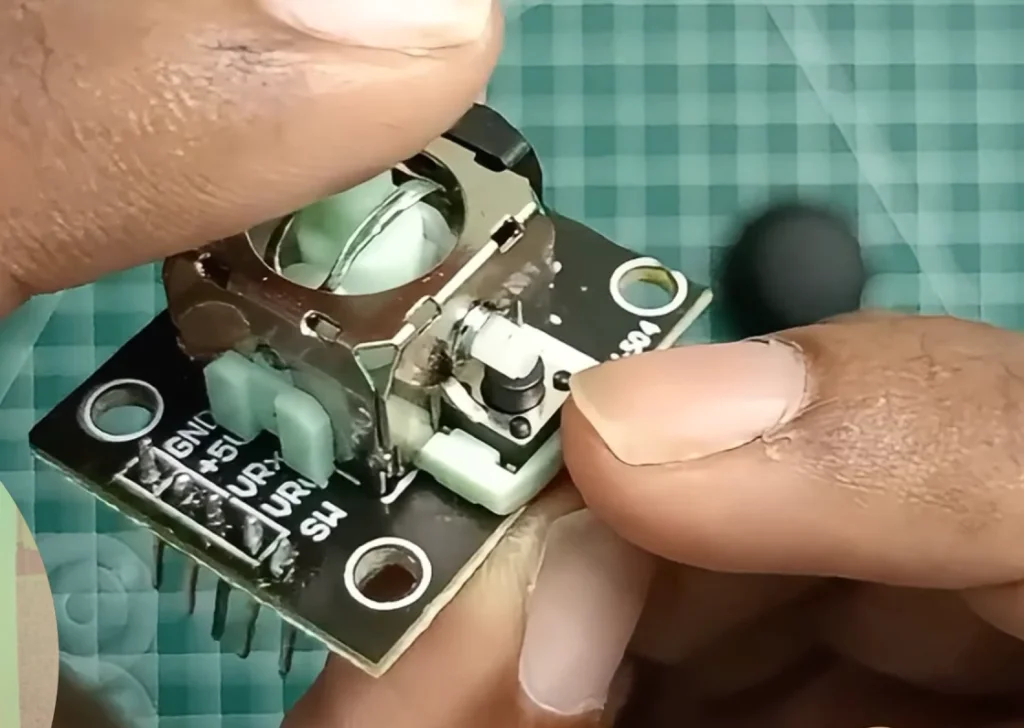
Inside the module:
Two 10kΩ potentiometers (one for X, one for Y)
One momentary push button (the “SW” pin)
Springs that return the stick to center when released
How the Joystick Outputs Values | Joystick with ESP32
When you move the joystick, the potentiometers change resistance. This changes the voltage on the signal pins.
The ESP32 reads this voltage using its ADC (Analog to Digital Converter) pins.
| Input | Voltage Range | ESP32 Reading Range |
|---|---|---|
| Minimum (full left/up) | 0V | 0 |
| Center (rest position) | ~1.65V | ~2048 |
| Maximum (full right/down) | 3.3V | 4095 |
Important: The ESP32’s ADC is 12-bit, giving readings from 0 to 4095. This is more precise than Arduino Uno’s 10-bit (0-1023) range.
What You’ll Need to Connect the Joystick with ESP32
| Component | Specs / Notes | Price (USD) |
|---|---|---|
| ESP32 Development Board | Any 30-pin version | $5.00 – $7.00 |
| Joystick Module | XY axes + center push button | $1.00 – $2.00 |
| Breadboard | 400 points (optional) | $1.00 – $2.00 |
| Jumper Wires | Male-to-Female and Male-to-Male | $2.00 – $4.00 |
| USB Cable | For programming and power | $2.00 – $4.00 |
Total: ~$11.00 – $19.00 USD
Quick Buy Links
| Component | Where to Find |
|---|---|
| ESP32 Development Board | AliExpress |
| Joystick Module | AliExpress |
| Breadboard (400 points) | AliExpress |
| Jumper Wires Kit | AliExpress |
Wiring the Joystick to ESP32 | Joystick with ESP32
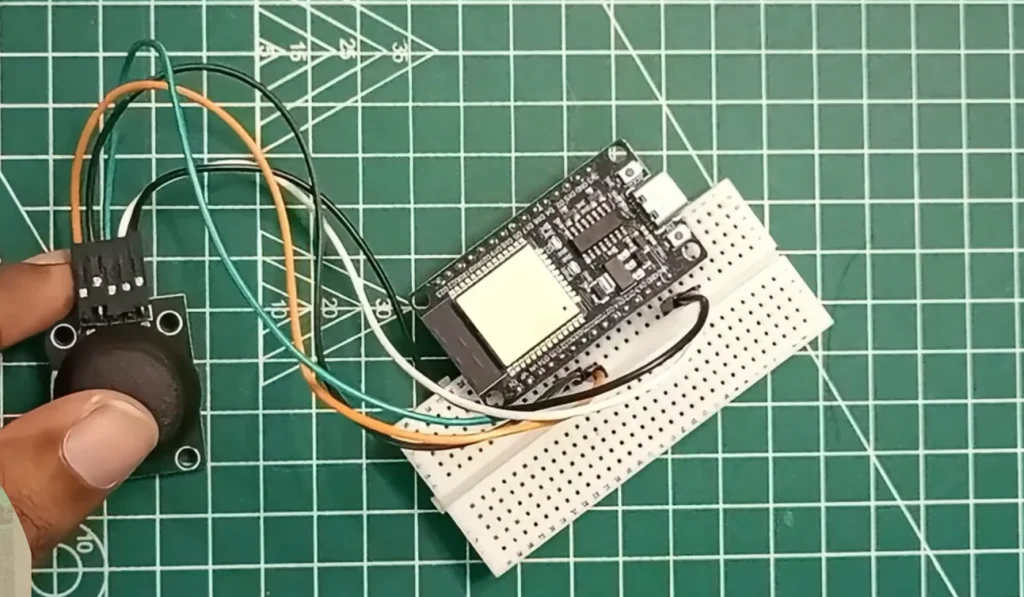
The joystick module has 5 pins:
| Joystick Pin | ESP32 Pin | Function |
|---|---|---|
| GND | GND | Ground |
| 5V (or VCC) | VIN (5V) | Power (5V works, 3.3V also works but range may differ) |
| VRx (X-axis) | GPIO 34 | Analog input (ADC) |
| VRy (Y-axis) | GPIO 35 | Analog input (ADC) |
| SW (button) | GPIO 15 | Digital input (with internal pull-up) |
Note about analog pins: GPIO 34, 35, 36, and 39 are input-only pins. They don’t have internal pull-up or pull-down resistors, but they’re perfect for reading analog sensors like this joystick.
The Code | Joystick with ESP32
This code reads the joystick position 50 times per second and prints the values to the Serial Monitor.
// ============================================================
// ESP32 Joystick Reader - Complete Beginner Guide
// Reads X/Y analog values and button state
// ============================================================

// Pin Definitions
#define JOYSTICK_X 34
#define JOYSTICK_Y 35
#define JOYSTICK_SW 15

// Variables for calibration
int xValue = 0;
int yValue = 0;
int swValue = 0;

void setup() {
  Serial.begin(115200);

  // Configure button pin with internal pull-up
  // (INPUT_PULLUP means pin reads HIGH when not pressed, LOW when pressed)
  pinMode(JOYSTICK_SW, INPUT_PULLUP);

  // Analog pins don't need pinMode setup

  Serial.println("ESP32 Joystick Reader");
  Serial.println("=====================");
  Serial.println("Move the joystick and press the button...\n");
  delay(1000);
}

void loop() {
  // Read analog values (0-4095)
  xValue = analogRead(JOYSTICK_X);
  yValue = analogRead(JOYSTICK_Y);

  // Read digital button (LOW when pressed, HIGH when not pressed)
  // The ! (NOT) inverts the reading so pressed = true
  bool buttonPressed = !digitalRead(JOYSTICK_SW);

  // Map values to -100 to +100 range for easier understanding
  int mappedX = map(xValue, 0, 4095, -100, 100);
  int mappedY = map(yValue, 0, 4095, -100, 100);

  // Small dead zone to eliminate jitter at center
  if (abs(mappedX) < 10) mappedX = 0;
  if (abs(mappedY) < 10) mappedY = 0;

  // Print to Serial Monitor
  Serial.print("X: ");
  Serial.print(xValue);
  Serial.print(" (");
  Serial.print(mappedX);
  Serial.print(") | Y: ");
  Serial.print(yValue);
  Serial.print(" (");
  Serial.print(mappedY);
  Serial.print(") | Button: ");
  Serial.println(buttonPressed ? "PRESSED" : "released");

  delay(50);  // Read 20 times per second (smooth enough, not too fast)
}
Understanding the Serial Monitor Output | Joystick with ESP32
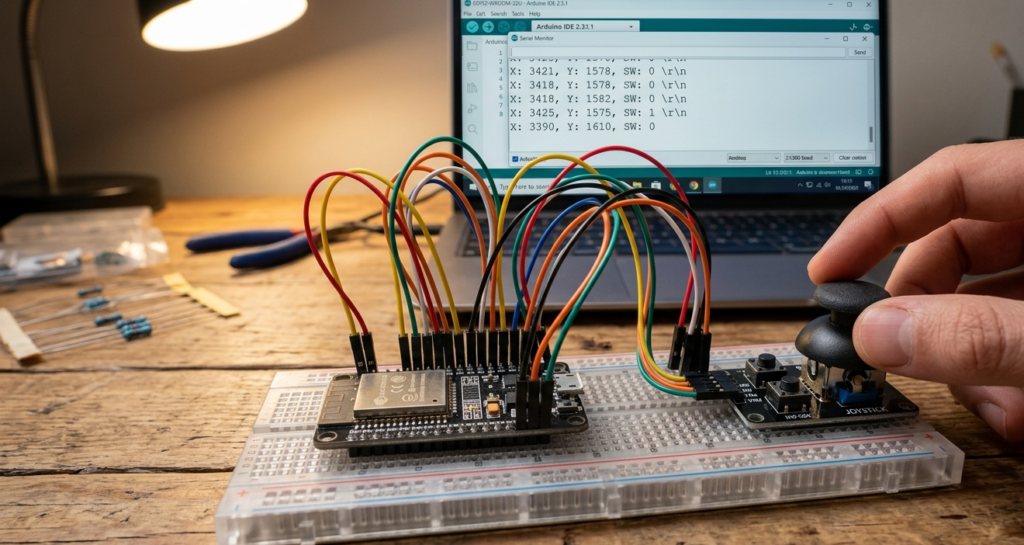
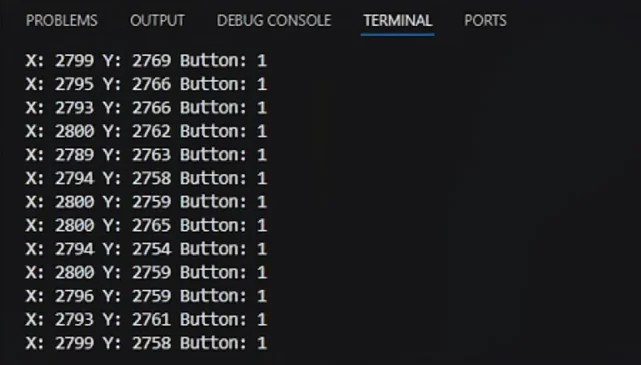
After uploading, open Serial Monitor (Tools → Serial Monitor, baud 115200).
Move the joystick. You’ll see something like:
X: 2048 (0) | Y: 2048 (0) | Button: released
X: 4095 (100) | Y: 2048 (0) | Button: released
X: 0 (-100) | Y: 2048 (0) | Button: released
X: 2048 (0) | Y: 4095 (100) | Button: released
X: 2048 (0) | Y: 0 (-100) | Button: released
X: 2048 (0) | Y: 2048 (0) | Button: PRESSED
| Reading | Meaning |
|---|---|
| X: 2048 (0) | Joystick centered left-right |
| X: 4095 (100) | Full right |
| X: 0 (-100) | Full left |
| Y: 2048 (0) | Joystick centered forward-back |
| Y: 4095 (100) | Full forward (away from you) |
| Y: 0 (-100) | Full backward (toward you) |
| Button: PRESSED | Joystick knob pressed down |
Full ESP32 RC car tutorial – Build Your Own ESP32 RC Car: Wireless Joystick Controller Guide for Beginners
Calibrating Your Joystick | Joystick with ESP32
Every joystick is slightly different. The center position might not be exactly 2048.
To calibrate:
Run the code and open Serial Monitor
Let go of the joystick (let it center itself)
Note the X and Y values at rest
Adjust the map function if needed:
// If your center X is 2100 instead of 2048, adjust the mapping:
int mappedX = map(xValue, 0, 4095, -100, 100);
// Or apply an offset:
int mappedX = map(xValue - 52, 0, 4095, -100, 100);
Most of the time, the default mapping is fine. The dead zone (if (abs(mappedX) < 10) mappedX = 0;) will ignore small center offsets.
What You Can Control with a Joystick | Joystick with ESP32
Once you can read joystick values, you can control almost anything:
| Output | How to Control |
|---|---|
| LED brightness | Map Y value (0-4095) to PWM value (0-255) |
| Servo angle | Map X value to servo degrees (0-180) |
| Motor speed | Map Y value to motor speed (-255 to +255) |
| RGB LED color | Use X for red, Y for green |
| Camera pan/tilt | X controls pan servo, Y controls tilt servo |
| Robot movement | X = turning, Y = forward/backward |

Controlling servos with ESP32 – How to Control Servo Motors with ESP32 using VS Code & PlatformIO | Robotics for Beginners
Simple Project: Joystick-Controlled LED Brightness | Joystick with ESP32
Here’s a quick project to test your joystick. It uses the Y-axis to control an LED’s brightness.
Add to your circuit: LED anode (+) → GPIO 26 through 220Ω resistor, LED cathode (-) → GND.
#define JOYSTICK_Y 35
#define LED_PIN 26

int yValue = 0;
int ledBrightness = 0;

void setup() {
  Serial.begin(115200);
  pinMode(LED_PIN, OUTPUT);
  ledcSetup(0, 5000, 8);
  ledcAttachPin(LED_PIN, 0);
}

void loop() {
  yValue = analogRead(JOYSTICK_Y);
  ledBrightness = map(yValue, 0, 4095, 0, 255);
  ledcWrite(0, ledBrightness);

  Serial.print("Y: ");
  Serial.print(yValue);
  Serial.print(" | Brightness: ");
  Serial.println(ledBrightness);

  delay(50);
}
Push the joystick forward → LED gets brighter. Pull back → LED dims.
More ESP32 output projects – Sound Sensor Module Project: ESP32 Sound Activated LED + Buzzer Project
Mini Project: Joystick-Controlled Servo (Pan Camera)
Let’s build a simple but fun project: control a servo motor using the joystick’s X-axis. This is the perfect next step after learning to read joystick values.
What You’ll Need | Joystick with ESP32
| Component | Quantity |
|---|---|
| ESP32 (from the main project) | 1 |
| Joystick module (already wired) | 1 |
| SG90 Servo motor | 1 |
| Jumper wires (female-to-female) | 3 |
Additional Wiring | Joystick with ESP32
| Servo Wire | ESP32 Pin |
|---|---|
| Brown/Black (GND) | GND |
| Red (VCC) | 5V (or external 5V power) |
| Orange/Yellow (Signal) | GPIO 13 |
Power note: A single SG90 servo can be powered from the ESP32’s 5V pin for testing. For multiple servos or長時間 use, use external power.
The Code
#include <ESP32Servo.h>

// Joystick pins (same as main project)
#define JOYSTICK_X 34
#define JOYSTICK_Y 35
#define JOYSTICK_SW 15

// Servo pin
#define SERVO_PIN 13

Servo myServo;

void setup() {
  Serial.begin(115200);

  // Attach servo
  myServo.attach(SERVO_PIN);

  // Configure joystick button
  pinMode(JOYSTICK_SW, INPUT_PULLUP);

  Serial.println("Joystick Servo Control Ready!");
  Serial.println("Move joystick left/right to control servo angle");
}

void loop() {
  // Read joystick X-axis value (0-4095)
  int xValue = analogRead(JOYSTICK_X);

  // Map to servo angle (0-180 degrees)
  int angle = map(xValue, 0, 4095, 0, 180);

  // Move servo
  myServo.write(angle);

  // Print to Serial Monitor
  Serial.print("X: ");
  Serial.print(xValue);
  Serial.print(" | Angle: ");
  Serial.println(angle);

  // Optional: Read joystick button
  bool buttonPressed = !digitalRead(JOYSTICK_SW);
  if (buttonPressed) {
    Serial.println("Button pressed!");
    myServo.write(90);  // Center servo when button pressed
    delay(500);
  }

  delay(15);  // Small delay for smooth servo movement
}
How It Works | Joystick with ESP32
| Joystick Position | Servo Angle |
|---|---|
| Full left (X = 0) | 0 degrees |
| Center (X = 2048) | 90 degrees |
| Full right (X = 4095) | 180 degrees |
| Button press | Centers servo to 90 degrees |
What You’ll See | Joystick with ESP32
Move the joystick left and right. The servo arm will follow your movement smoothly. Press the joystick down – the servo centers automatically.
Challenge Yourself | Joystick with ESP32
Once this works, try these upgrades:
| Challenge | What to Change |
|---|---|
| Use Y-axis | Change analogRead(JOYSTICK_Y) and map to servo |
| Add second servo | Connect second servo to GPIO 14, one for X, one for Y |
| Reverse direction | Swap map values: map(xValue, 0, 4095, 180, 0) |
| Finer control | Reduce movement range: map(xValue, 0, 4095, 45, 135) |
Complete System Diagram | Joystick with ESP32
Joystick X-axis → ESP32 GPIO 34 → map(0-4095 → 0-180) → Servo on GPIO 13
This mini project teaches you:
✅ How to read analog input from a joystick
✅ How to convert sensor values to control outputs
✅ How to control a servo with PWM
✅ Real-world application: camera pan mechanism
This is the exact same principle used in CCTV pan-tilt systems, robot head movement, and RC camera gimbals. Once you master this, you can build a complete pan-tilt camera system by adding a second servo for tilt control!
Troubleshooting | Joystick with ESP32
| Problem | Likely Cause | Fix |
|---|---|---|
| Serial Monitor shows no values | Wrong baud rate | Set Serial Monitor to 115200 baud |
| Values stuck at 4095 or 0 | VCC or GND not connected | Check joystick power wiring |
| X and Y values swapped | Wiring mismatch | Swap VRx and VRy pins, or swap in code |
| Button always shows “released” | SW pin not connected | Check jumper from SW to GPIO 15 |
| Button always shows “pressed” | Missing pull-up | Use pinMode(JOYSTICK_SW, INPUT_PULLUP) |
| Values jump erratically | Floating analog pins | Analog pins are fine, but check power stability |
| Center position not at 2048 | Normal variation | Add dead zone or calibration offset |
🎥 Watch the Complete Video Tutorial | Joystick with ESP32
See the joystick in action with real-time demonstrations and code explanation:
📺 How to Use a Joystick with ESP32 | Complete Guide for Beginners
👉 Don’t forget to Subscribe to Roborear on YouTube for more ESP32 tutorials and robotics projects every week!
How It Works | Joystick with ESP32
| Joystick Position | Servo Angle |
|---|---|
| Full left (X = 0) | 0 degrees |
| Center (X = 2048) | 90 degrees |
| Full right (X = 4095) | 180 degrees |
| Button press | Centers servo to 90 degrees |
What You’ll See | Joystick with ESP32
Move the joystick left and right. The servo arm will follow your movement smoothly. Press the joystick down – the servo centers automatically.
Challenge Yourself | Joystick with ESP32
Once this works, try these upgrades:
| Challenge | What to Change |
|---|---|
| Use Y-axis | Change analogRead(JOYSTICK_Y) and map to servo |
| Add second servo | Connect second servo to GPIO 14, one for X, one for Y |
| Reverse direction | Swap map values: map(xValue, 0, 4095, 180, 0) |
| Finer control | Reduce movement range: map(xValue, 0, 4095, 45, 135) |
Complete System Diagram | Joystick with ESP32
Joystick X-axis → ESP32 GPIO 34 → map(0-4095 → 0-180) → Servo on GPIO 13
This mini project teaches you:
✅ How to read analog input from a joystick
✅ How to convert sensor values to control outputs
✅ How to control a servo with PWM
✅ Real-world application: camera pan mechanism
This is the exact same principle used in CCTV pan-tilt systems, robot head movement, and RC camera gimbals. Once you master this, you can build a complete pan-tilt camera system by adding a second servo for tilt control!
Your Turn | Joystick with ESP32
The joystick is one of the most versatile input devices for robotics. Master it, and you can control anything.
Now go build something. An RC car. A robot arm. A game controller.
The joystick is waiting. I hope you liked the tutorial on the Joystick with ESP32 connection. Read all Roborear tutorials for beginners – Blogs