The “Why Isn’t This Working?” Moment | Breadboard Tutorial
You’ve seen the videos. Arduino blinking LEDs. ESP32 reading sensors. Robots doing cool things.
You bought a breadboard. You bought components. You followed a diagram.
And nothing worked.
The LED didn’t light up. The buzzer stayed silent. You checked everything twice. Still nothing.
Here’s the secret that no one tells you: Most electronics problems aren’t bad components. They’re bad connections.
I’ve been there. We’ve all been there.
That’s why I made this breadboard tutorial. No coding. No microcontrollers. Just pure, hands-on electronics.
By the end of this breadboard tutorial, you’ll understand exactly how a breadboard works. You’ll build four circuits that actually work. And you’ll never look at a breadboard the same way again.
What is a Breadboard? (And Why That Weird Name?)
A breadboard is a tool for building temporary electronic circuits. No soldering required. Just plug components in and they connect.
Why “breadboard”? – Breadboard Tutorial
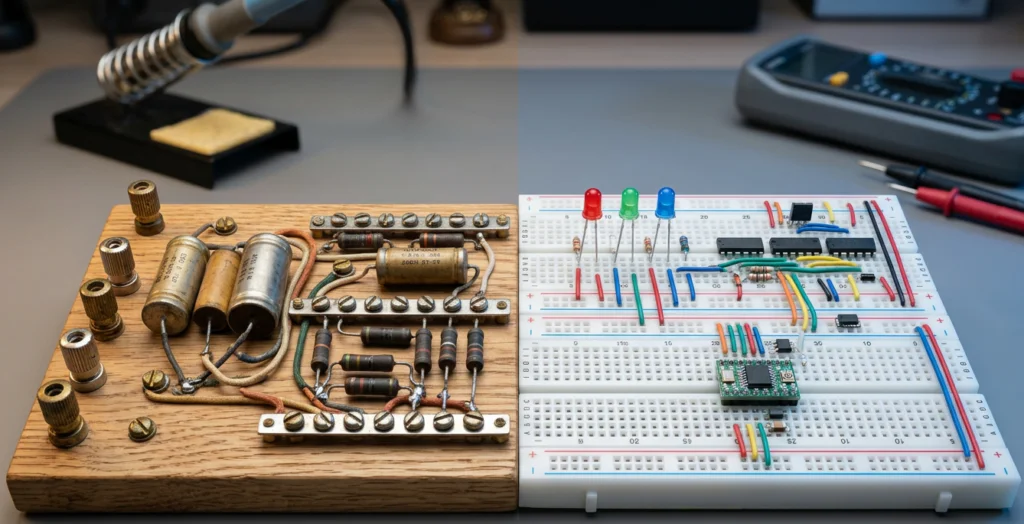
In the old days (like, 1960s old), people literally used wooden breadboards. They’d hammer nails into a bread cutting board and solder components to the nails. When they were done, they’d unsolder everything and the breadboard went back to slicing bread.
Today’s breadboards are plastic with metal clips inside. Same idea, much cleaner.
How a Breadboard Works (The 60-Second Explanation)
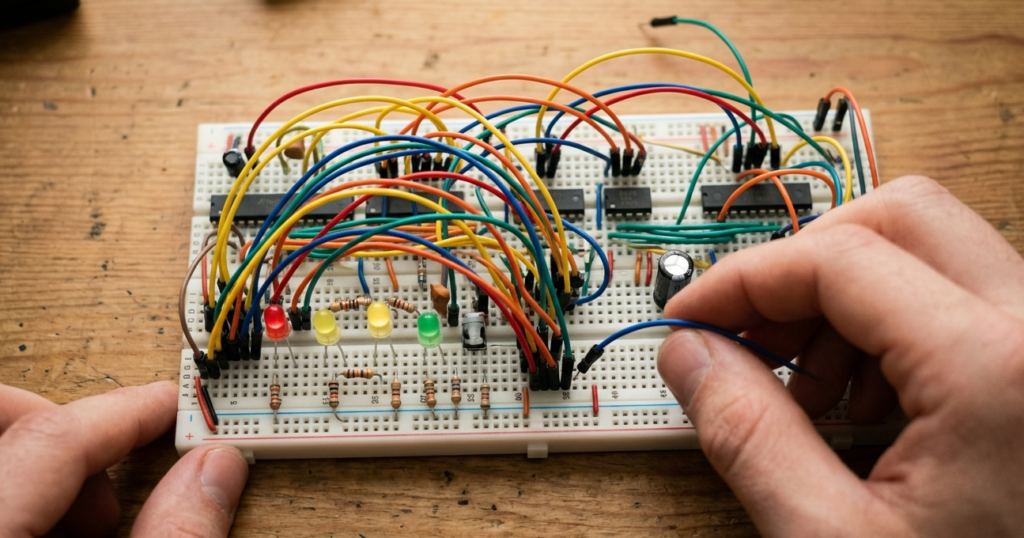
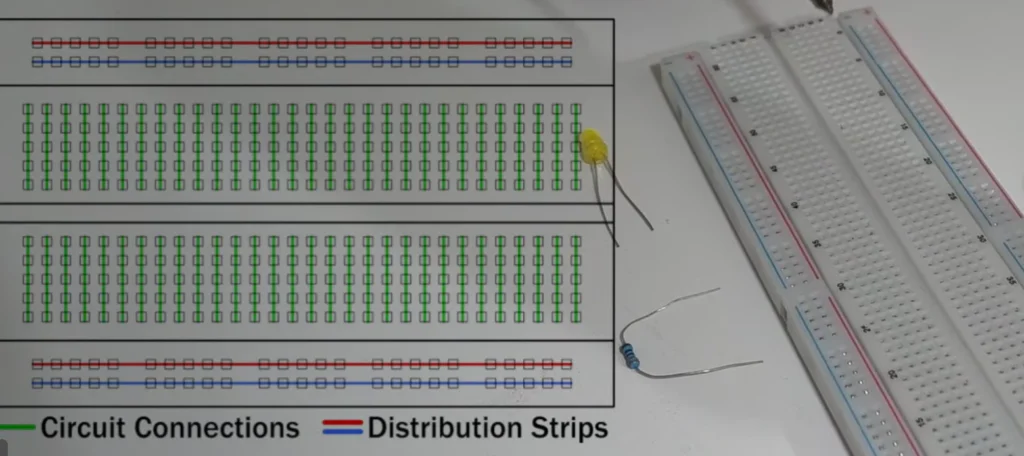
Look at your breadboard. You’ll see rows and columns of tiny holes.
Inside the breadboard are metal clips that connect certain holes together.
The Rules:
| Section | Connection Pattern | What It’s Used For |
|---|---|---|
| Power Rails (Red/Blue lines) | All holes in the same column are connected (top/bottom separate) | Distribute power (VCC) and ground (GND) to your whole circuit |
| Terminal Strips (middle section) | Each row of 5 holes is connected (left and right sides are separate) | Place components and connect them |
Think of it like this:
Power rails = highways. Long, continuous lines of power.
Terminal strips = city streets. Small, isolated blocks where components live.
Common Mistakes (Read This Before Building – Breadboard Tutorial Tips)
| Mistake | Why It’s Wrong | Fix |
|---|---|---|
| Components in wrong rows | The two halves of the terminal strip (top and bottom) are NOT connected | All legs of one component must be in the same horizontal row of 5 holes |
| Power rails misunderstood | The red and blue rails are separate. The top and bottom halves are separate. | Use jumpers to connect rails if you need power on both sides |
| LED backwards | LEDs are polarized (anode +, cathode -) | Long leg = positive (+), short leg = negative (-). Look for the flat edge on the LED body. |
| Missing resistor | LED draws too much current, burns out instantly | Always use a resistor (220Ω to 1kΩ) in series with an LED |
| Loose connections | Component not pushed in all the way | Push firmly until component sits flush against the breadboard surface |
A bad connection can look like a bad component. Always check your connections first.
Quick Buy Links (Affiliate) | Breadboard Tutorial
| Component | Where to Find |
|---|---|
| Breadboard (400+ points) | AliExpress |
| Jumper Wires (Male-to-Male) | AliExpress |
| Jumper Wires (Male-to-Female) | AliExpress |
| LED Assorted Kit | AliExpress |
| Resistor Kit (Assorted) | AliExpress |
| Potentiometer (5kΩ Linear) | AliExpress |
| 1000µF Capacitor | AliExpress |
| Sound Sensor Module | AliExpress |
| Buzzer (Active) | AliExpress |
| 9V Battery + Connector Clip | AliExpress |
Component Orientation for Breadboard Tutorial (Critical!)
LEDs (Light Emitting Diodes)
LEDs are polarized. They only work one way.
| Sign | Meaning |
|---|---|
| Long leg | Positive (Anode) – connect to power side |
| Short leg | Negative (Cathode) – connect to ground side |
| Flat edge on LED body | Indicates negative side |
No light? Flip the LED around.
Capacitors (Electrolytic) | Breadboard Tutorial
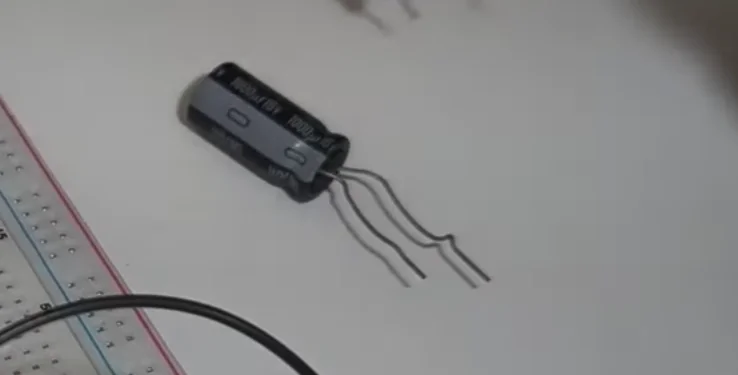
Similar to LEDs, electrolytic capacitors have polarity.
| Sign | Meaning |
|---|---|
| Long leg | Positive |
| Short leg | Negative |
| Stripe on capacitor body | Indicates negative side |
Connect them backwards and they can explode (literally). Respect the stripe.
Project 1: Simple LED Circuit (The “Hello World” of Electronics) | Breadboard Tutorial
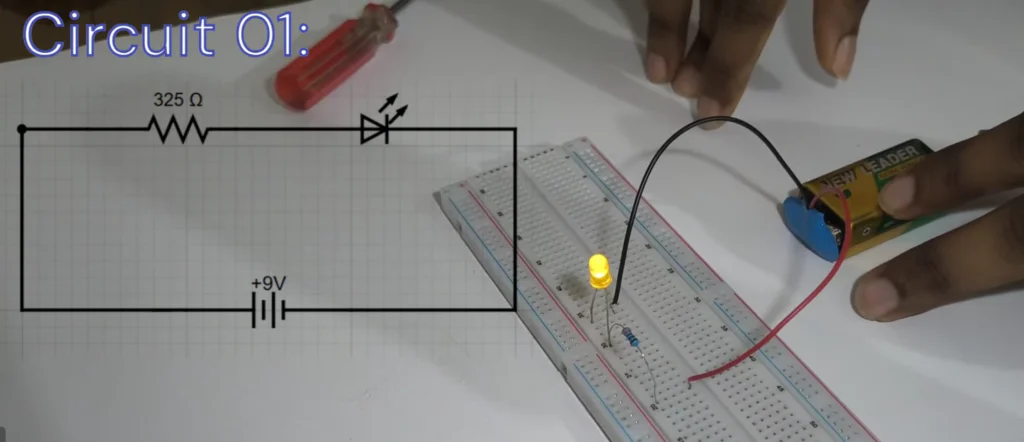
This is where every electronics journey starts. An LED. A resistor. A battery. Light.
What you’ll need:
| Component | Value | Quantity |
|---|---|---|
| Breadboard | 400+ points | 1 |
| LED | Any color | 1 |
| Resistor | 220Ω (Red-Red-Brown-Gold) | 1 |
| Battery | 9V with clip connector OR 5V phone charger | 1 |
| Jumper wires | Male-to-male | 2 |
The Circuit:
| From | To |
|---|---|
| Battery positive (+) | Power rail (red) |
| Battery negative (-) | Ground rail (blue) |
| Power rail | Resistor one leg |
| Resistor other leg | LED anode (long leg) |
| LED cathode (short leg) | Ground rail |
How to Read Resistor Color Codes? – How To Read Resistor Color Codes (And Never Burn an LED Again) | 4 Easy Steps
Why this works:
The resistor limits current. Without it, the LED draws too much current and burns out instantly. 220Ω is a safe value for most standard LEDs.
What if it doesn’t light up?
| Problem | Check |
|---|---|
| LED backwards | Flip it around |
| Resistor wrong value | Should be 220Ω (Red-Red-Brown-Gold) |
| Battery dead | Test with multimeter or replace |
| Loose connection | Push everything firmly into breadboard |
🎉 Success! You just built your first circuit.
Project 2: Multiple LEDs in Parallel | Breadboard Tutorial
One LED is cool. Multiple LEDs are cooler.
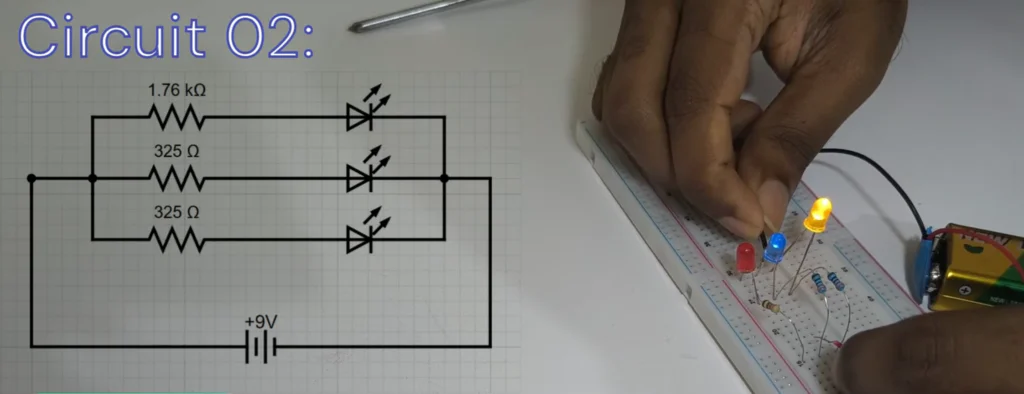
In this circuit, we’ll power three LEDs from the same power source. This is called a parallel circuit.
What you’ll need:
| Component | Quantity |
|---|---|
| LEDs (different colors) | 3 |
| Resistors (220Ω each) | 3 |
| Jumper wires | Several |
The Circuit:
Each LED gets its own resistor. All LEDs connect to the same power and ground.
| From | To |
|---|---|
| Power rail | Resistor 1 → LED 1 → Ground rail |
| Power rail | Resistor 2 → LED 2 → Ground rail |
| Power rail | Resistor 3 → LED 3 → Ground rail |
Why parallel instead of series?
| Connection Type | Behavior | When to Use |
|---|---|---|
| Series | LEDs share current. If one fails, all fail. Different brightness if LEDs are different colors. | Not recommended for different LEDs |
| Parallel | Each LED gets its own current. One failing doesn’t affect others. Consistent brightness. | Use this for multiple LEDs |
Pro tip: Don’t connect multiple LEDs in series with different colors. Red LEDs need less voltage than blue LEDs. They’ll have uneven brightness.
🎉 You just built a parallel circuit!
Project 3: Potentiometer as a Dimmer Switch | Breadboard Tutorial
A potentiometer is a variable resistor. Turn the knob, resistance changes.
We’ll use it to dim an LED.
What you’ll need:
| Component | Value | Quantity |
|---|---|---|
| Potentiometer | 5kΩ or 10kΩ linear | 1 |
| LED | Any color | 1 |
| Resistor | 220Ω | 1 |
| Jumper wires | Several | – |
The Circuit:
| From | To |
|---|---|
| Power rail | Potentiometer outer pin 1 |
| Potentiometer outer pin 3 | Ground rail |
| Potentiometer middle pin (wiper) | Resistor → LED → Ground |
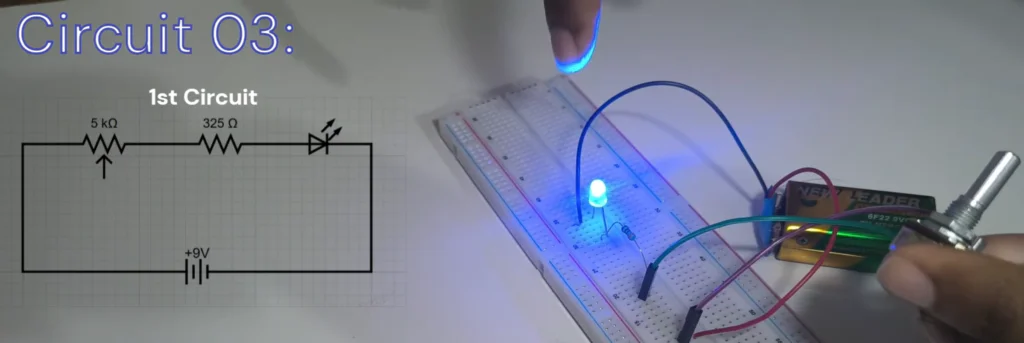
How it works:
Turn knob one way → resistance high → LED dim
Turn knob other way → resistance low → LED bright
Middle position → medium brightness
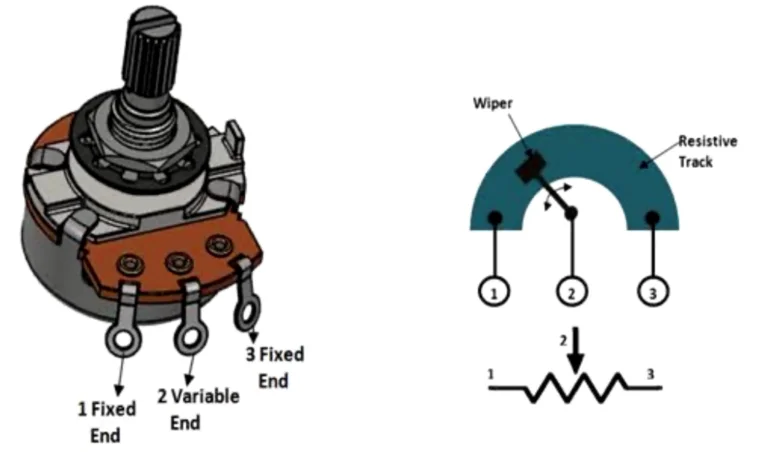
Potentiometer Pins Explained:
| Pin | Function |
|---|---|
| Outer pins | Connected to the ends of a resistive track |
| Middle pin (wiper) | Moves along the track as you turn the knob |
When you connect the two outer pins to power and ground, the wiper picks up a voltage anywhere between those two extremes. This is called a voltage divider.
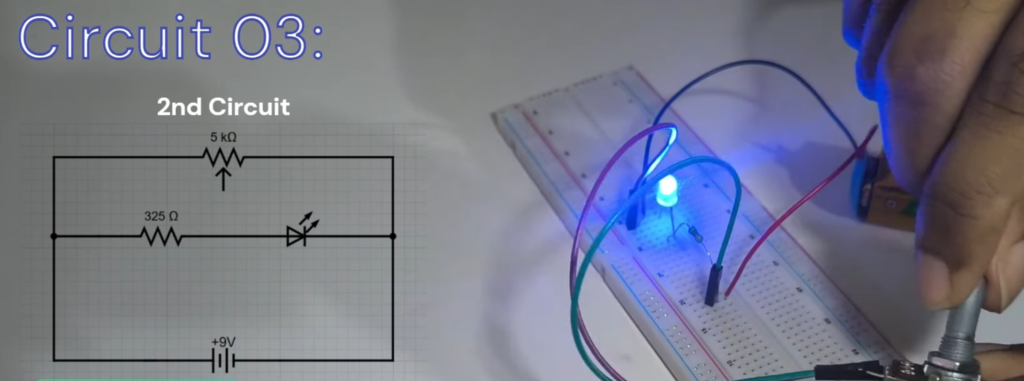
🎉 You just built a dimmer switch!
Project 4: Sound-Activated Buzzer with Capacitor Delay | Breadboard Tutorial
This is the most advanced circuit in this breadboard tutorial. A sound sensor detects claps. A capacitor creates a time delay. A buzzer sounds for a few seconds after each clap.
No microcontroller. No code. Pure analog electronics.
What you’ll need:
| Component | Quantity |
|---|---|
| Sound sensor module (LM393) | 1 |
| Buzzer (active or passive) | 1 |
| Capacitor (1000µF electrolytic) | 1 |
| Resistors (220Ω, 10kΩ) | 1 each |
| Jumper wires | Several |
The Circuit:
| From | To |
|---|---|
| Sound sensor VCC | Power rail (5V) |
| Sound sensor GND | Ground rail |
| Sound sensor DO (Digital Output) | Resistor (220Ω) → Capacitor (+) |
| Capacitor (-) | Ground |
| Capacitor (+) | Buzzer (+) |
| Buzzer (-) | Ground |
How it works:
Clap your hands
Sound sensor detects clap, outputs a HIGH signal
HIGH signal charges the capacitor through a resistor
Capacitor holds charge and keeps the buzzer on
After a few seconds, capacitor discharges through the buzzer
Buzzer stops
Adjusting the delay:
| Change | Effect |
|---|---|
| Larger capacitor | Longer delay |
| Smaller capacitor | Shorter delay |
| Larger resistor | Slower charging, longer delay |
| Smaller resistor | Faster charging, shorter delay |
Experiment with different capacitor and resistor values to get the timing you want. Build a sound-activated LED project with ESP32 – Sound Sensor Module Project: ESP32 Sound Activated LED + Buzzer Project
🎉 You just built a sound-activated switch with a time delay – no Arduino required!
Breadboard vs PCB: When to Use Which
| Feature | Breadboard | PCB (Printed Circuit Board) |
|---|---|---|
| Soldering required? | ❌ No | ✅ Yes |
| Reusable? | ✅ Yes, many times | ❌ No, one-time use |
| Best for | Prototyping, learning, testing | Final product, permanent circuits |
| Reliability | Good (but connections can loosen) | Excellent |
| Cost per use | One-time purchase | Low but cumulative |
Rule of thumb: Build on a breadboard first. When everything works, transfer to a PCB for permanent use.
Troubleshooting Guide of this Breadboard Tutorial
| Problem | Most Likely Fix |
|---|---|
| No component lights up | Check battery connection. Is the battery clip connected properly? Is the battery dead? |
| One LED doesn’t light | LED polarity backwards. Or that specific connection is loose. |
| All LEDs very dim | Battery voltage too low. Replace battery. |
| Potentiometer doesn’t dim smoothly | Wrong type of potentiometer. Linear vs logarithmic. Use linear (B-type) for dimming. |
| Buzzer always on | Sound sensor output stuck high. Adjust the potentiometer on the sensor module. |
| Buzzer never turns on | Sound sensor sensitivity too low. Turn the potentiometer clockwise. |
| Capacitor gets hot | Polarity reversed. Electrolytic capacitors are polarized. Positive to positive, negative to ground. |
The 4 Connections You MUST Remember – Breadboard Tutorial
| # | Connection | Why It Matters |
|---|---|---|
| 1 | Power rail to component | Delivers power across the board |
| 2 | Ground rail to component | Completes the circuit |
| 3 | Component to component (within same row) | Creates the circuit path |
| 4 | Jumper wires to connect distant points | Bridges gaps between different sections |
Master these four connections, and you can build almost any breadboard circuit.
What’s after the Breadboard Tutorial? (Your Path Forward)
Once you’re comfortable with breadboard basics, you’re ready for:
| Next Step | What You’ll Learn |
|---|---|
| Arduino/ESP32 basics | Blinking LEDs with code, reading sensors |
| Resistor color codes | Identify any resistor by sight |
| Reading schematics | Translate circuit diagrams to breadboards |
| Soldering | Make your circuits permanent |
The projects in this breadboard tutorial are the foundation for everything else. Master these before moving to microcontrollers. Getting started with ESP32 and VS Code – Robotics for Beginners: Learn ESP32 PlatformIO with VS Code | Blink LED Tutorial
🎥 Watch the Step-by-Step Breadboard Tutorial Video
See all four projects in action with real-time demonstrations, wiring tips, and troubleshooting:
📺 Top 4 Breadboard Connections You Need to Know
👉 Don’t forget to Subscribe to Roborear on YouTube for more electronics basics and robotics tutorials every week!
Your Turn
Building on a breadboard is a skill. Like any skill, it takes practice.
Start with the simple LED circuit. Get it working. Then add more LEDs. Then try the potentiometer. Leave the sound sensor for last.
And when something doesn’t work? Don’t get frustrated. That’s where learning happens.
Every expert was once a beginner who didn’t give up. I hope you have enjoyed this breadboard tutorial. Read all Roborear tutorials for beginners – Blogs